- These are vanilla Forge servers I have compiled with an Ngrok executable (Used for giving IP to friends who wants to join).
- For tutorial: First download the chosen version you would like to play with your friends and yourself. Next, run the run.bat file. Once a terminal pops up and says press a key to continue, exit the command line. After that open the eula.txt and change eula to true with Notepad or any text editor. Make sure to save cause I know y'all don't like pressing Ctrl + S.
- Next step, open the run.bat and wait for the terminal to load the server world. With that done, open Minecraft and choose Multiplayer => Direct Connect and type localhost. Boom, you are in your server however, if you are experiencing difficulties connecting heres the help.
- Open the server.properties file in the folder. Find the line online-mode and set it to false. Also when you are playing together don't close ngrok and the terminal for the server, these will stop the server from functioning.
- For the Ngrok stuff. Make an Ngrok account and you will have a code line for you token in Ngrok, make sure to save that. Next, open the ngrok.exe file and if it prompts to ask your token, paste it in the terminal.
- Lastly, once your ngrok is set, type ngrok tcp -region ap 25565. If you are not in Asia you can type these if you are in the specified regions, just replace ap with us - United States, eu - Europe, au - Australia, sa - South America, jp - Japan, and in - India. Once done you will be promted to a new look and the IP you have to share to your friends will look like 0.tcp.ap.ngrok.io:11111.
- For troubleshoot: If you are getting errors starting up the run.bat you might have not installed Java on your PC/Laptop. High version servers such as 1.17 above require JDK 17 and these can be installed in here.
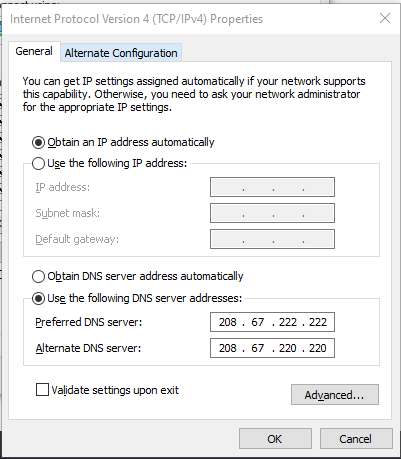
- If your friends have issues connecting with the server mainly having an error Unknown Host all you have to do is go to your Control Panel => Network and Internet => Network and Sharing Center => Change Adapter Settings (On the left) => Double click the connection you are using => Properties => Internet Protocol Version 4
- Press the "Use the following DNS server adresses" and change it. Prefered DNS: 208.67.222.222 and Alternate DNS Server: 208.67.220.220 (Sample on 1st Image)
- Link for Servers with Java Installers:GDrive Link
- Modded Server Tutorial (Limited to 1.12)Watch Here
- Modded Servers I made:GDrive Link